
What should I open on my phone to find games, a shortcut or login?
Select the tool according to your purpose. If you want to view the list of games, the current browser session is sufficient. The shortcut is useful for subsequent visits. PlayID will be required for access linked to this service.
| Task | Where to perform them |
|---|---|
| Game Catalogue and Rules | Open the Nomini page in Chrome or Safari. Search by title, category and studio. |
| Quick return to the page | Add a shortcut to the home screen in the browser menu. The icon opens a specific website. |
| Logging in via wallet | Select PlayID on the Nomini side, confirm in the service, and return to the session you were in. |
| Checking withdrawal after changing phone number | After logging back into the existing profile, open the transaction history. If you are blocked, start with the access recovery instructions. |
What remains in Nomini after changing your phone
The balance and history are linked to the Nomini profile. On the new phone, log in using the same method and, if necessary, add the icon again.
Account details, balance and transaction history
Before you discard your old phone, check access to the assigned email address or linked PlayID. After logging in from a new device, compare the username and the most recent transaction to confirm that it is the same profile. If a different name appears, ask support to verify the account link before carrying out the transaction.
Re-login, browser data and shortcut
The locally saved password, cookies and icon depend on the browser and a copy of the settings. If the new phone does not restore the session, log in using the correct method and add the icon again. Follow the instructions for selecting the Nomini login method. Keep access to your old mail until the profile verification is complete.
What does Nomini App mean and how to check a card in a store
The Nomini instructions describe the web version launched from the icon on the home screen. The path starts in the browser and does not require downloading an APK or installing from the store. If you are looking for the Nomini App in the Polish App Store, pay attention to the identifier. The Nomini card with number 6472181401 describes the donut game. This card does not describe logging into the casino account or its balance.
PlayID has its own financial services app. In the App Store, the publisher is Netify Limited, and the card specifies the requirement iOS 15.6 or later. On Google Play, the app identifier is com.universalgateway.playId. The app supports wallet features and access confirmation in partner services.
Where to add the Nomini Casino shortcut in Chrome and Safari
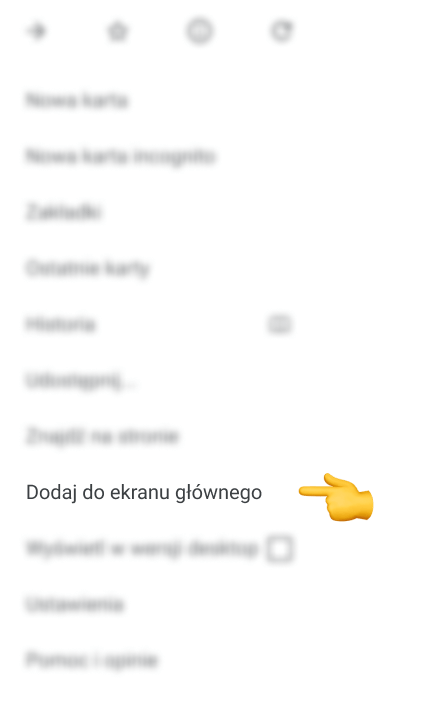
- Android, Chrome. Open the page in a regular tab. In the three-dot menu, select Create shortcut, enter a name, and tap Add. Depending on the Chrome version, the option may be under Install and create shortcut or Add to home screen.
- iPhone, Safari. Open the page, tap Share, and scroll the list of actions to To Home Screen or To Main Screen. If you have a toggle for opening as a www app on the confirmation screen, you can turn it on before using the Add button.
- Run the new icon and check whether it opens the same address that was in the normal tab. Availability from Poland is explained by the section on the Polish version of Nomini.
 Open full image
How to restore the Nomini icon when the page opens in a tab
First, check the address saved in the old icon. A regular shortcut may open a tab, especially if creating a tab was selected during addition. If you want to try the standalone window mode, remove the old icon and add a new one using the current address, selecting installation mode or web app mode if it appears in the menu.
If the error also occurs on a regular card after launching, check the exact message. It shows whether the issue concerns the connection, session, or website availability. Deleting the icon applies to the device. You can check Nomini account settings separately after logging into your profile.
How to determine where the confirmation via PlayID has stalled
Determine what the last visible screen was. This allows you to distinguish between a PlayID opening error, an issue with its verification, and a failed return to the Nomini Casino account.
| Last visible stage | What to do |
|---|---|
| Nomini does not open the confirmation | Retry using a regular Chrome or Safari card. If the browser reports that the window is blocked, allow it to open for this website. |
| PlayID displays an error | Check whether the correct PlayID profile has opened and whether the confirmation request is visible. If the error repeats, describe it at support@playid.com and provide the time of the attempt. |
| Confirmation completed, no entry into Nomini | Return to the same card from which the login was started. If you see a form or another profile, pass the time and message to Nomini support. Also check the return procedure from PlayID. |